Overview
Managing Apple devices in an organization often involves spending countless hours in the web interfaces of Apple Business Manager (ABM) or Apple School Manager (ASM). These portals are essential for enrolling Macs, iPads, and iPhones, but when your fleet exceeds a few hundred devices, the browser-based experience becomes slow and error-prone. Fortunately, Apple released an official REST API for these services, enabling developers and IT admins to automate tasks and build custom tools. One standout application is ASBMUtil, a native macOS app that brings ABM/ASM management directly to your desktop. This tutorial walks you through installing, configuring, and using ASBMUtil to efficiently manage your Apple devices.
Prerequisites
System Requirements
- macOS 11 (Big Sur) or later
- An Apple Business Manager or Apple School Manager account with Admin or Device Enrollment Manager role
- Internet connectivity to Apple's servers
- Xcode Command Line Tools (optional but helpful for troubleshooting)
API Credentials
Before using ASBMUtil, you must generate an API key for your ABM/ASM instance:
- Log in to Apple Business Manager or Apple School Manager.
- Navigate to Settings > Keys.
- Click Generate Key and choose Device Management scope.
- Download the generated
.p8private key file and note the Key ID and Issuer ID displayed on the same page. - Store the private key securely – it cannot be downloaded again.
Step-by-Step Instructions
Step 1: Download and Install ASBMUtil
ASBMUtil is available on GitHub or through authorized enterprise channels. Visit the official repository and download the latest .dmg file. Double-click it and drag the app to your Applications folder. Launch ASBMUtil – you may need to right-click and select Open to bypass Gatekeeper warnings if it isn't notarized.
Step 2: Configure API Connection
When you first open ASBMUtil, you'll see a configuration window. Enter the following details:
- Issuer ID – from the Keys page in ABM/ASM
- Key ID – also from the Keys page
- Private Key Path – the location of your downloaded
.p8file
Click Save & Connect. ASBMUtil will validate the credentials and display a success message. If you encounter errors, double-check that the key permissions include Device Management and that the file path contains no spaces or special characters (use a simple directory like ~/Downloads/ABMKey.p8).
Step 3: Explore the Dashboard
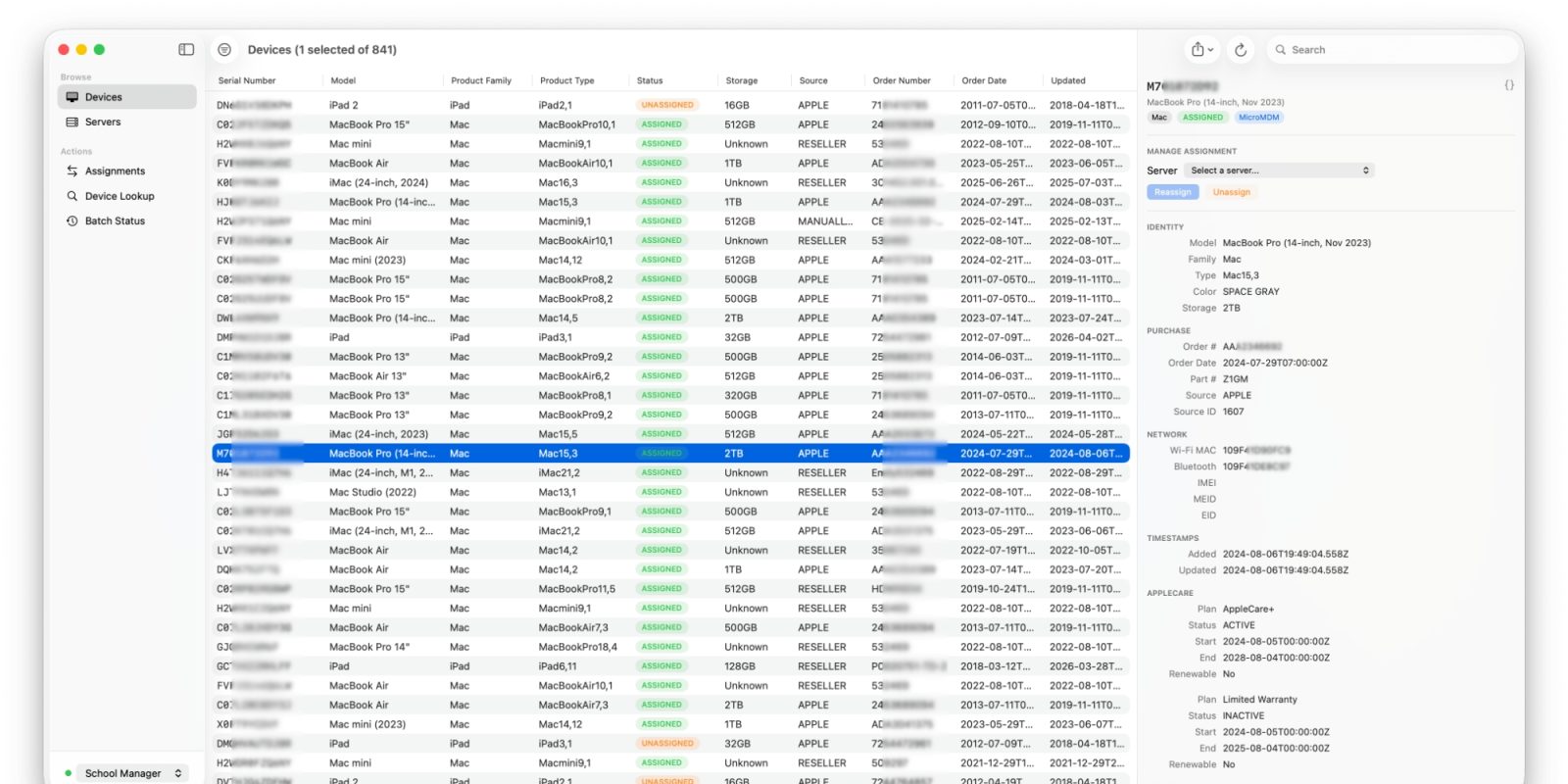
After authentication, the main window loads. It shows an overview of your ABM/ASM tenants, including device counts, enrollment statuses, and recent activity. The interface is organized into tabs:
- Devices – search, filter, and view detailed info for individual devices.
- Assignments – manage MDM server assignments and profiles.
- Activity Log – audit history of changes.
Step 4: Perform Basic Device Operations
To find a device, click the Devices tab and enter a serial number, model, or tag in the search bar. ASBMUtil supports partial matching. Once located, you can:
- View device details (serial, model, last sync date, MDM server).
- Release the device from your ABM (removes it from the organization).
- Reassign the device to a different MDM server.
- Apply or change device tags.
These operations correspond to Apple's API endpoints. ASBMUtil provides a user-friendly interface that would otherwise require writing cURL commands, like:
curl -X POST https://api.apple.com/device/v1/devices/releaseDevice \
  -H 'Authorization: Bearer <token>' \
  -H 'Content-Type: application/json' \
  -d '{"serialNumbers": ["<serial>"]}'
ASBMUtil handles token generation and request formatting automatically.

Step 5: Batch Operations with CSV Import
One of the most powerful features is bulk processing. Navigate to Devices > Import CSV. Your CSV file should have a column named serial (or SerialNumber) and optional columns like mdm_server, tags, or action (release, assign, lookup). Example:
serial,action
C02XXXXXXXXX,release
C02YYYYYYYYY,assign
After uploading, ASBMUtil previews the changes and allows you to confirm. It then executes the API calls sequentially, showing a progress bar and summary of results.
Step 6: Monitor Activity and Export Logs
The Activity Log tab records every action taken through the app. You can filter by date, user, or operation type. Export logs as CSV for auditing. This is especially useful for compliance and tracking device lifecycles.
Common Mistakes
Incorrect API Permissions
Ensure your API key has the Device Management scope, not just Read-only. Without it, write operations like releasing or reassigning devices will fail silently. Regenerate the key if needed.
Private Key Format Issues
The .p8 file must be exactly as downloaded – do not edit it in a text editor, as accidental line breaks or encoding changes can break authentication. If keys work in the Apple Portal but not in ASBMUtil, try re-downloading the file.
Network Restrictions
ASBMUtil communicates directly with api.apple.com. Corporate firewalls or VPNs may block the connection. Ensure your network allows HTTPS traffic to Apple's API endpoints (api.apple.com and gs.apple.com). Test with a simple cURL command first.
Overlooking Rate Limits
Apple API has rate limits – typically 600 requests per minute per integration. ASBMUtil respects these limits, but if you import a very large CSV, you may encounter throttling. The app pauses automatically, but the operation will take longer. Consider splitting huge lists into batches of 500.
Summary
ASBMUtil transforms the tedious web-based experience of Apple Business Manager into a fast, native macOS app. By leveraging Apple's official API, it enables admins to search, assign, release, and batch-manage devices with minimal effort. Follow the prerequisites, configure your API credentials, and explore the intuitive interface to save hours of manual work. Remember to avoid common pitfalls like incorrect permissions or network blocks. With ASBMUtil, your enterprise device management becomes both efficient and auditable.